


A new chapter in the Miguel Angel Productions experience. Your celebration deserves beautiful images—and a clear, organized experience before and after the cameras begin recording. Introducing the new Event Client Suite: your private destination for the information, documents, payments and production updates connected to your photo and video event.
From now on, Event Client Suite is our primary online workspace for your event account. It brings important details together so you can review your production without searching through scattered messages, old attachments or separate conversations. The purpose is simple: more clarity for you, better continuity with our team, and a practical way to stay connected to the production you have entrusted to us.
This guide walks you through the experience, including real examples from active accounts. The screenshots have been edited to cover identifying information with opaque red marks and remove administrative browser elements. Names, contact information and private references are not being shared. Financial figures are examples from individual accounts, not package offers or the amount you personally owe.
One private destination for your event
Think of Event Client Suite as your event's digital home. The overview connects your upcoming production with the information that matters most: the event details, the contracted services, your financial position and the next steps available for your account. Instead of treating these as unrelated pieces, the ecosystem presents them in the context of your reservation.
The design follows the black-and-gold visual language of Imperium, but the most important change is how the information is organized. You can move from a broad overview to the specific records behind it: a signed agreement, an installment in your payment schedule, an available enhancement or a production update. Our team can work with the corresponding account records from its internal workspace, while you use your private client-facing portal.
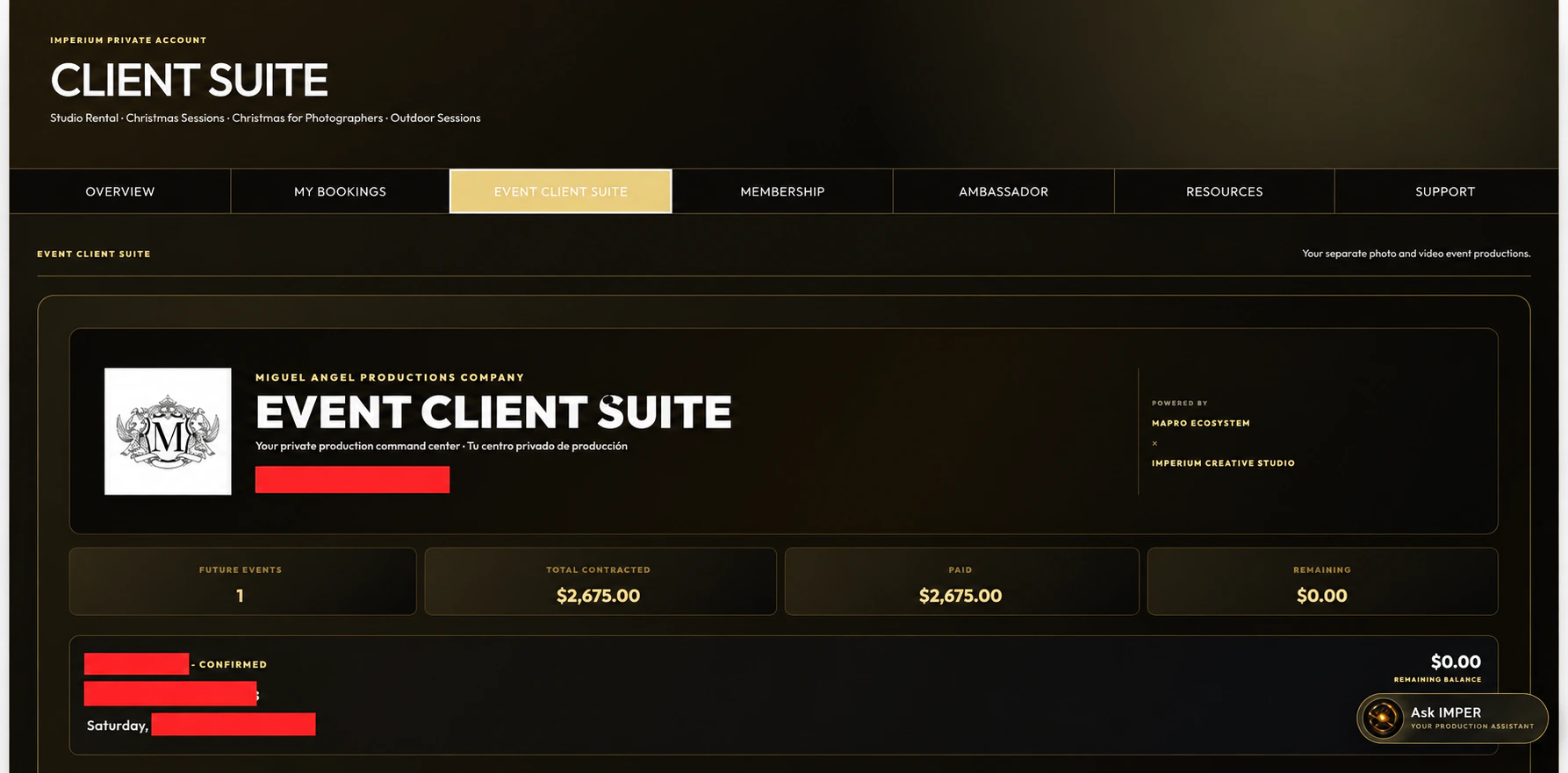
Event Client Suite and Client Suite: which one should you use?
The names are similar because both belong to the same ecosystem, but they serve different kinds of reservations. Event Client Suite is the dedicated experience for photo and video event productions. Client Suite serves Studio Rental, Christmas Sessions, Christmas Sessions for Photographers and Outdoor Sessions.
If you have more than one type of booking, you may encounter both areas within your account experience. For example, a studio appointment and a wedding production are not the same reservation. Open the appropriate section and select the correct event before reviewing a balance, requesting an enhancement or asking for assistance. A figure belonging to one reservation should not be interpreted as the balance of every service you have booked.
Getting started: your booking email is the key
Start at the Client Portal. Use the same email address associated with your reservation. This is how the ecosystem connects your sign-in to the correct client identity and event information. Using a different personal or business email can leave you looking at an account that does not contain the reservation you expect.
- Open the official Client Portal and choose the appropriate account-access option.
- Enter the email associated with your booking. If you received an account invitation, use the email identified in that message.
- If this is your first access, follow the account activation or password-creation instructions presented by the system. If an account already exists, use the password-recovery option instead of creating another account.
- After signing in, open Event Client Suite and review your event details.
- If your event is missing, contact our team with your booking email and reservation information so we can verify the association.
Your password belongs in the secure sign-in form—not in a chat message, an email reply or an event questionnaire. Our assistant does not need you to paste your password into a conversation. When you finish, use the logout control inside your portal, especially on a shared device.
Your production details, with context
Inside an event account, you can review the production information available for that reservation, including the event date, time, service or package and relevant contact details. Where available, the contracted-package section preserves the description associated with your agreement. That may include coverage duration, the type of photography or video service, deliverables and other package-specific terms.
This is useful when preparing your event timeline or reviewing what you originally selected. It also helps separate the base package from later enhancements. A package description and the final account total may differ when additional services or other agreed items are involved. Always read the complete account information and signed agreement together; a short package heading alone does not explain every financial entry.
Our ecosystem supports reservations created in Imperium Booking as well as eligible event records carried forward from our previous platform. Their presentation may differ depending on the information and features available for each record. Moving to the new portal does not, by itself, create a new agreement or mean that previous payments need to be made again.
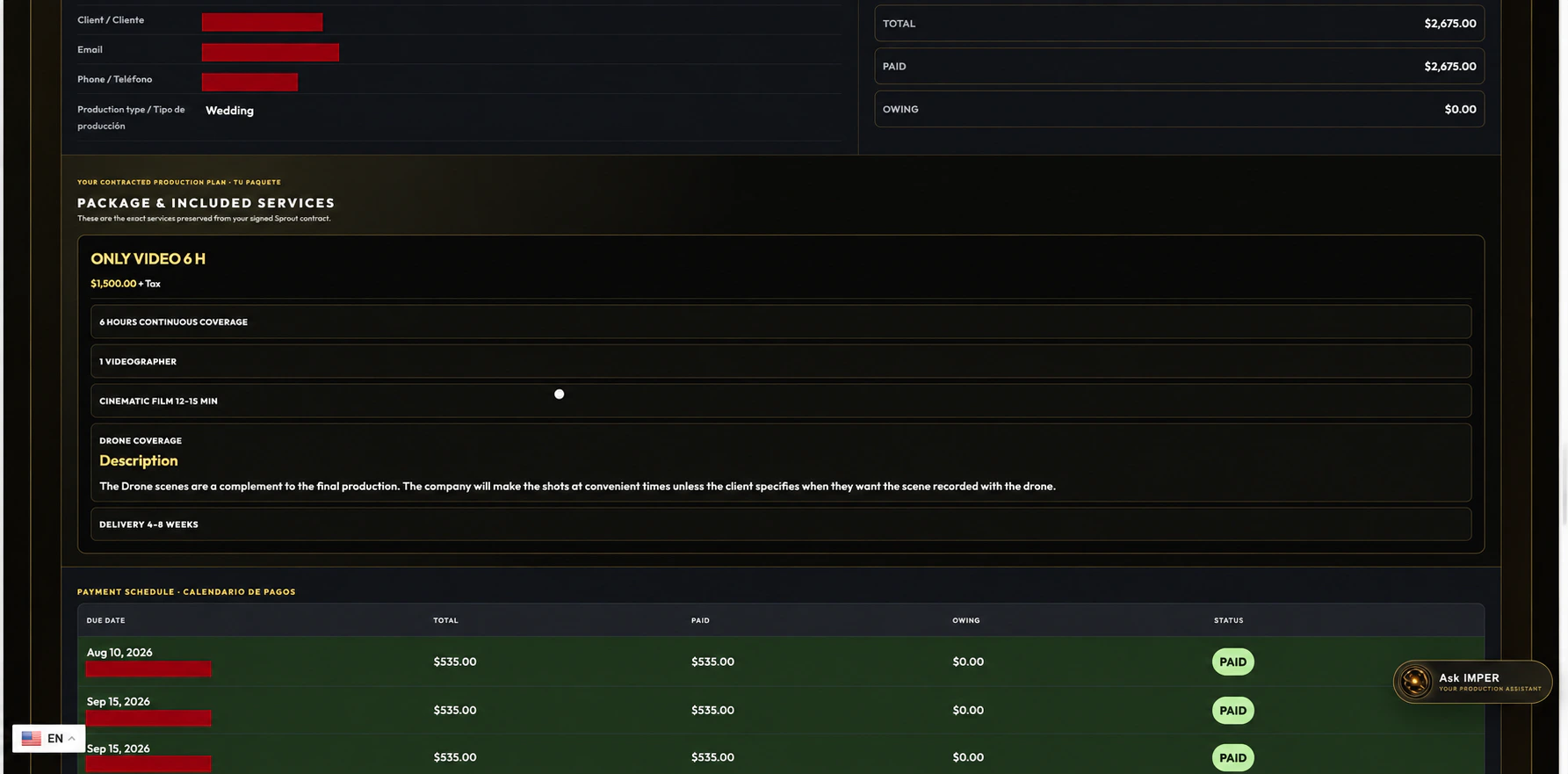
Understanding your balance without guesswork
The financial overview is designed to answer three different questions. Total or Total Contracted describes the amount recorded for the account. Paid describes payments recorded against it. Remaining or Owing describes the amount still outstanding. These are related figures, but they are not interchangeable.
In example A, the recorded total is $2,675.00 and the recorded payments are also $2,675.00, leaving $0.00 remaining. That is why the account appears paid in full. It does not mean every event costs $2,675.00; your account reflects your own agreement, applicable adjustments and selected services.
A remaining balance is also not automatically an overdue balance. When an account uses installments, some of the outstanding amount may be scheduled for future dates. The payment schedule provides that necessary context. Review the due dates before interpreting an open amount as something that must be paid immediately.
The payment schedule: what is due, when it is due, and what has been paid
Your payment schedule breaks the financial plan into understandable rows. Each row can show a due date, total amount, amount paid, amount still owing and status. This lets you distinguish a completed installment from one that is still open, rather than relying only on a single overall balance.
The second real example below shows a $1,070.00 installment followed by $99.51 installments. Some rows are marked paid, while later rows remain open. The screenshot is an excerpt of that account's schedule, not its entire payment plan. A final installment can differ from earlier monthly amounts, so always use the actual amount shown for the selected row rather than assuming every month is identical.
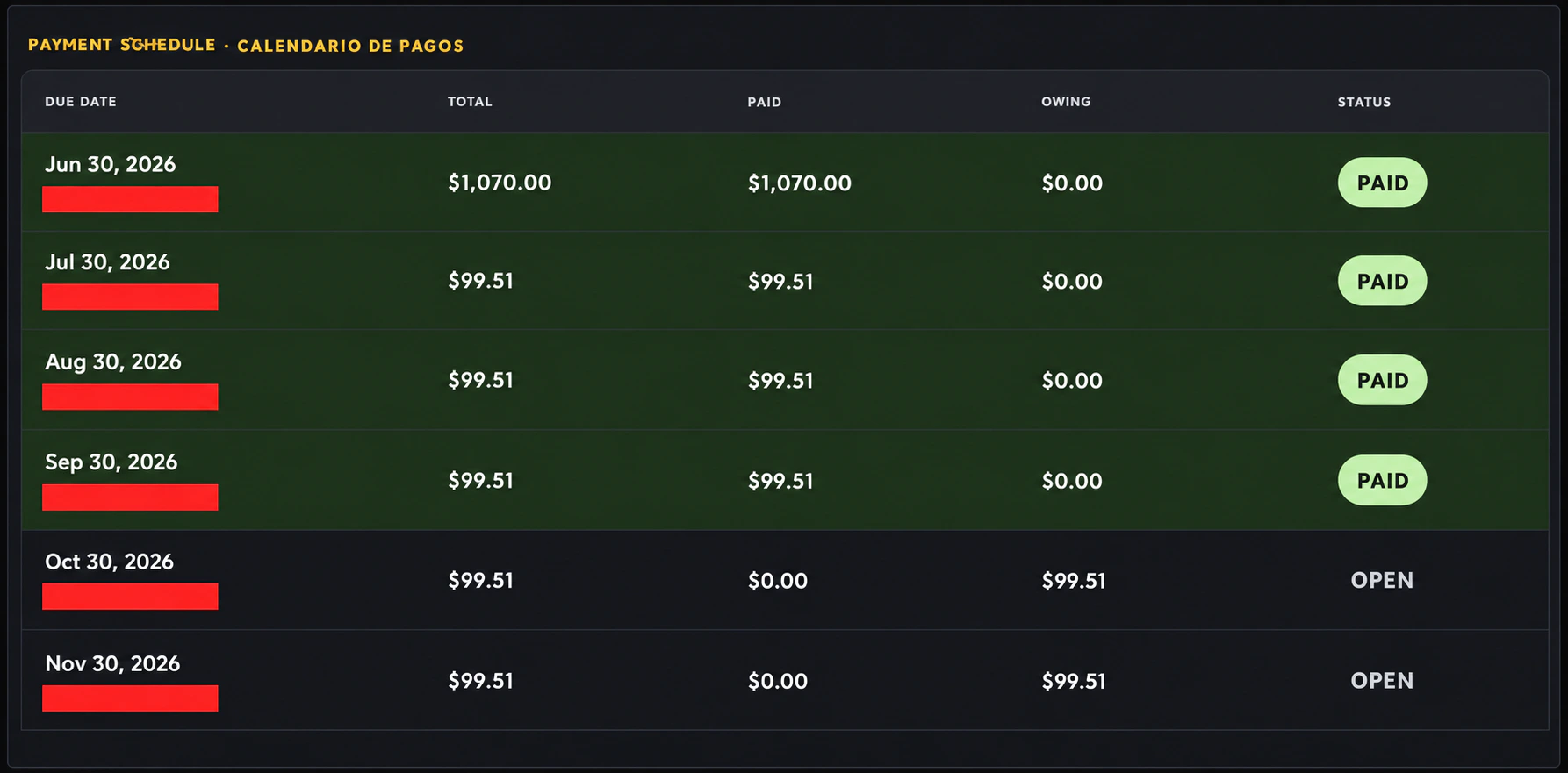
A due date is not the same as a payment date. The due date identifies the scheduled obligation. The payment history records when a payment was received or recorded. A September 30 installment can be paid before September 30, and a payment received later can correspond to an earlier installment. Read both sections together when reconciling your records.
When your event supports online payment options, use the controls offered within that account. Depending on the reservation, these may include the next scheduled payment, a custom amount or the remaining balance. Review the selected event and amount before confirming. Opening the portal or reading a balance does not make a payment.
For a payment handled directly with our team, allow the payment to be verified and recorded against the appropriate account. A message saying a transfer was sent is not the same as confirmation that the account has been credited. Do not submit a duplicate payment merely because a recent transaction has not appeared yet; contact us so we can reconcile it.
Receipts and account communication
Payment confirmation and receipt communication help you keep a record outside the portal as well. Check the email associated with your reservation, and retain the confirmation for your files. If you believe a confirmed payment or receipt is missing, share the payment date, amount and reference with our team through the appropriate support channel. Never send full card details or your password.
Email notifications complement the portal; they do not replace your full account view. A reminder relates to a particular scheduled obligation, while the portal gives you the wider context of the event, paid amounts and remaining installments. If an email and your current account appear inconsistent, ask us to verify the records before taking further action.
Agreements and documents in the same workspace
Your agreement is an important part of the production—not an attachment that should disappear into an inbox. Where available, Event Client Suite provides access to your signed event agreement and related documents. You can review the terms associated with your reservation and keep a copy of the document for your own records.
The presence of a document does not mean every pending signature has been completed. Check the status shown for your account and follow any instructions that apply. Your signed agreement remains the reference for contracted coverage, deliverables and applicable conditions; this introductory article does not amend those terms.
Personalizing your production with event add-ons
An event can evolve as planning progresses. The native Event Production Add-ons experience allows you to explore eligible enhancements associated with your production. Depending on availability and your package, these may include additional coverage, a session or a printed product. Read each item's description carefully: similar-looking cards may represent different services.
Review the displayed final price, quantity and any conditions before authorizing an addition. Event add-on pricing is presented with the configured tax included, so the final displayed amount is the figure to review. An authorized addition can increase your event balance and affect the payment plan; it should not be treated as a free informational request.
The relevant catalog is the ecosystem's native event add-on system. Studio add-ons belong to the studio workflow, and an unrelated product listing is not a substitute for an event enhancement. If you cannot find the option you need, ask IMPER or our team to guide you to the correct service.
Questionnaires, preferences and useful updates
For accounts with these features enabled, the portal can bring together an event questionnaire, music preferences, client updates and shared information. These tools help the production team understand the details that matter to you and keep those details connected to the event.
Take time to review answers before submitting, particularly when a form indicates that submission is final or available only once. If a detail changes afterward, contact the team rather than assuming an earlier response has automatically been replaced. Clear information is more valuable than a rushed submission.
Production tracking: stay connected beyond the event day
Your experience continues after the celebration. Production tracking provides a dedicated view of the progress information made available by the team, such as photography and video statuses and delivery information when it has been entered. The tracking reference associated with your event helps connect you to the correct production.
Keep that reference and its link private. A tracking status reflects the information recorded by the production team; it is not a live camera feed or a guarantee that every editing action will instantly appear on screen. A delivery date should be read alongside your agreement and any specific updates provided for your event.
If a tracking link cannot locate your production, return to your signed-in Event Client Suite and use the reference shown there. If the issue continues, ask our team to verify the link. Do not guess other clients' codes or share yours publicly.
Meet IMPER: assistance inside the ecosystem
IMPER brings conversational assistance to the experience. You can ask for help finding the right section, understanding account terminology, exploring native add-ons or identifying the next step in a supported workflow. Instead of having to know the name of every screen, you can describe what you need in natural language.
For private account questions and supported account actions, sign in through the official access flow first. The assistant's account-related work must stay connected to your authenticated identity and your own reservation. A useful question is specific: “Help me understand my next payment,” “Where can I review my signed agreement?” or “What event add-ons are available for my production?”
IMPER is an assistance layer, not a replacement for the underlying records or the production team. Review the result of any requested action and any price or confirmation shown. If the assistant cannot verify something or a request needs human attention, our team remains part of the process. Cancellations and event-date changes require the company's authorized staff; they are not handled by IMPER as self-service changes.
Use the IMPER Suite when you want guided help. Never paste passwords, full payment-card information or another person's private account details into the conversation.
The technology behind a more connected experience
The value of the MAPRO ecosystem is the connection between its parts: account identity, reservations, financial records, agreements, native add-ons, production tracking and communication. Event Client Suite presents the customer-facing view of that connected information, while internal tools help authorized staff manage the corresponding records.
This is more than a redesigned page. It is a move toward a consistent working environment in which a question about a production can be answered in the context of that production. Automation can assist with repetitive steps and communication, while authentication and human review remain important wherever private information or consequential changes are involved.
Technology should make the experience clearer, not make promises on behalf of a contract or invent a payment that has not been confirmed. That is why the most useful habit is to consult your actual account, read its specific information and ask for verification when something seems unclear.
Your first-visit checklist
- Sign in with the email used for your event reservation.
- Confirm that you are viewing the correct photo or video event.
- Review the event details and contracted package.
- Check the total, paid amount and remaining balance.
- Read the dates and statuses in the payment schedule.
- Open the agreement and complete any available planning steps that apply to you.
- Explore optional enhancements only when you are ready to review their cost and conditions.
- Keep your tracking reference private and ask IMPER or our team when you need help.
- Log out when you finish on a shared device.
Bienvenido a tu nuevo Event Client Suite
Para nuestros clientes de habla hispana: este será el espacio principal para consultar la información de su evento de foto y video. Ingrese con el mismo correo electrónico utilizado en su reserva. Si todavía no tiene una contraseña, siga las instrucciones de activación; si su cuenta ya existe, utilice la recuperación de contraseña.
Dentro de su evento podrá revisar la información disponible sobre su producción, contrato, balance, calendario de pagos y seguimiento. “Paid” significa pagado; “Owing” o “Remaining” indica el saldo pendiente; “Due Date” es la fecha de vencimiento, no necesariamente el día en que se recibió el pago. IMPER puede orientarle, y nuestro equipo continúa disponible para las gestiones que requieren atención humana.
Your event deserves a clear view of what comes next. Welcome to Event Client Suite—our new shared starting point for a more organized, informed and connected production experience.
Published September 27, 2026. Screenshots are privacy-edited excerpts of real accounts at the time of capture. Features and available actions depend on the reservation and its account configuration. Your own agreement and current account records govern your services, payment obligations and delivery terms.